Company Branding
Customize Expensed with your organization's logo and brand colors.
Accessing Branding Settings
- Click Admin in the sidebar
- Click Company Settings
- Find the Branding section
Admin Role Required
Only organization Admins can modify branding settings.
Brand Color
Set your organization's primary color:
- Click the color picker or
- Enter a hex code (e.g., #FF5900)
- See live preview of changes
- Click Save
Where Color Applies
Your brand color appears on:
- Buttons - Primary action buttons
- Links - Clickable text
- Icons - Interface icons
- Charts - Dashboard visualizations
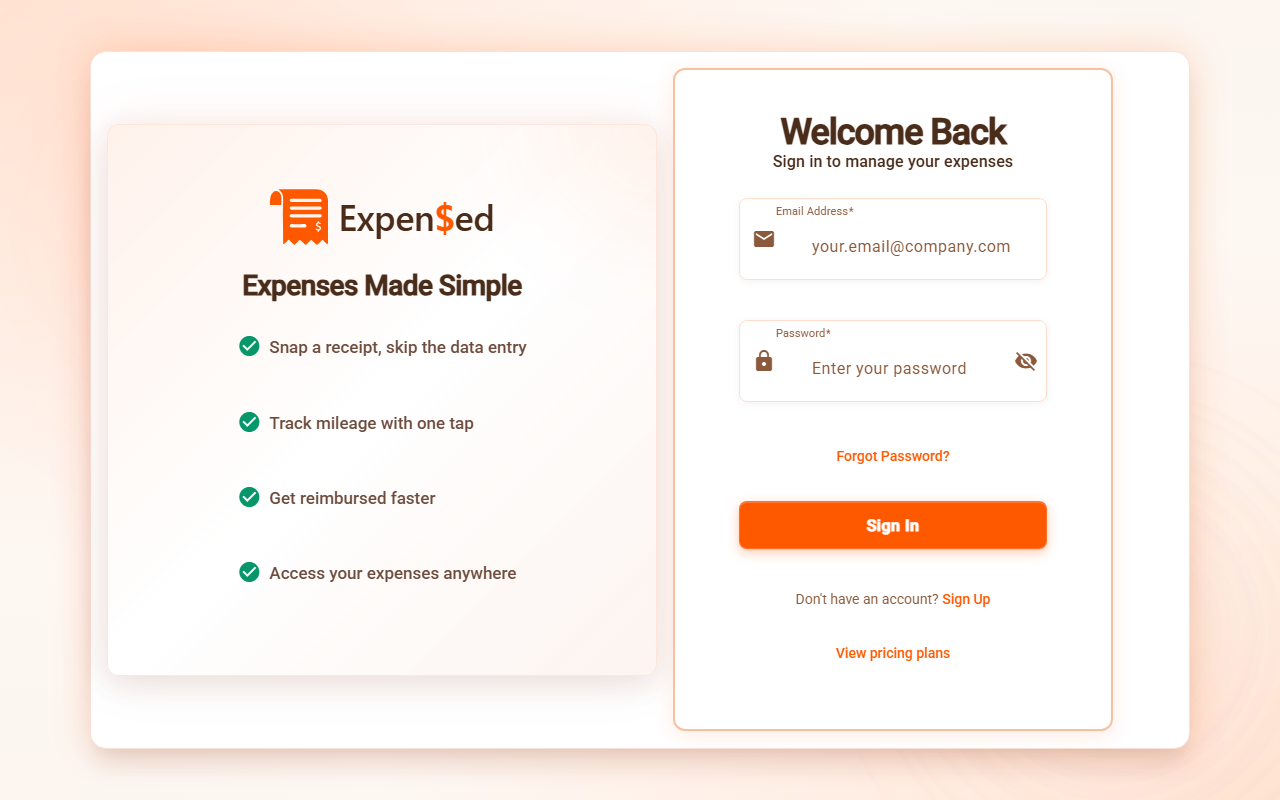
- The "$" logo - Expensed logo accent
Color Preview
The preview shows:
- Button appearance
- Icon colors
- Sidebar accents
- Before committing changes
Choosing a Good Color
Brand Color Tips
- Use your primary brand color
- Ensure good contrast with white text
- Avoid very light colors (hard to see)
- Match your website/email colors
Company Logo
Upload your organization's logo:
- Click Upload Logo or drag a file
- Preview the logo placement
- Click Save
Logo Requirements
| Requirement | Specification |
|---|---|
| Format | PNG or SVG |
| Background | Transparent recommended |
| Width | 200-400 pixels |
| Aspect Ratio | Horizontal (3:1 or 4:1) |
| Max Size | 2 MB |
Where Logo Appears
Your logo displays:
- In the top navigation bar
- Next to the Expensed logo
- On exported PDF reports
- In email notifications (coming soon)
Removing Logo
To go back to default:
- Click Remove Logo
- Confirm removal
- Only Expensed logo shows
Company Name
Set your organization's display name:
- Find the Company Name field
- Enter your organization name
- Click Save
The name appears:
- In the navigation bar
- On reports and exports
- In email notifications
Preview Changes
Before saving:
- Make your changes
- Look at the live preview panel
- See how colors look in dark/light mode
- Confirm you're happy
- Click Save
All Users See Changes
Immediate Effect
Branding changes apply instantly to all organization members. Everyone sees the new look on their next page load.
Dark Mode Compatibility
Your brand color works in both modes:
- Light mode: Color on light backgrounds
- Dark mode: Automatically adjusted for visibility
Test in both modes before saving.
Best Practices
Logo Design
- Use transparent PNG for best results
- Ensure logo is legible at small sizes
- Horizontal logos work best
- Simple logos scale better
Color Selection
- Choose your main brand color
- Ensure AA accessibility contrast
- Test with colorblind users if possible
- Consistent with your other tools
Background Removal
If your logo has a background:
- Visit remove.bg
- Upload your logo
- Download transparent PNG
- Upload to Expensed
Resetting to Default
To reset all branding:
- Clear the company name (or keep it)
- Remove the logo
- Set color to default (#FF5900)
- Click Save
Next: Approval Workflows →