Joining an Organization
If your company uses Expensed, you'll need to join their organization to submit expenses. Here's how.
Accepting an Invitation
When someone invites you to their organization, you'll receive an email invitation:
- Check your inbox for an email from noreply@expensed.app
- Click the Accept Invitation button in the email
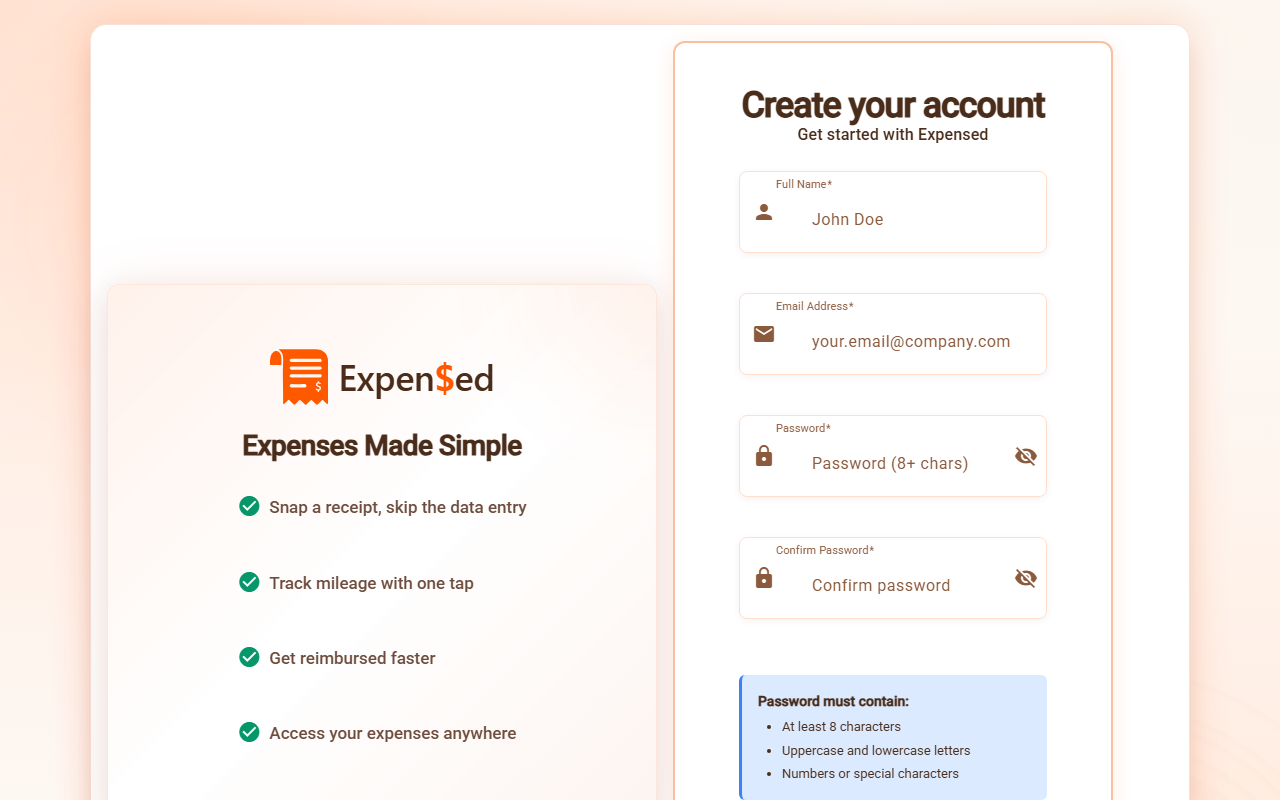
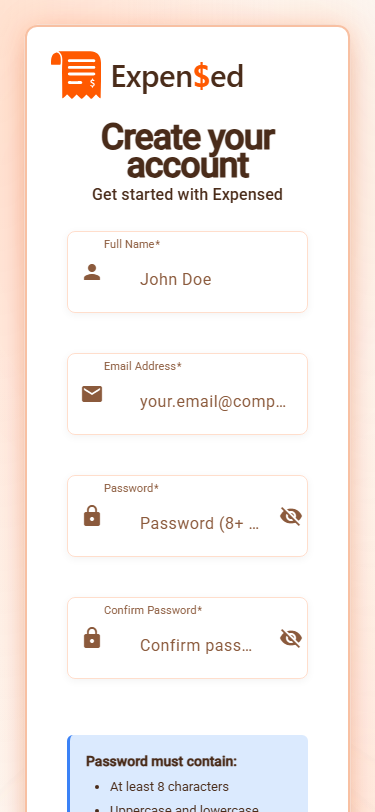
- If you don't have an account, you'll create one first
- Your email address is pre-filled from the invitation
- Just add your name and create a password
- If you're already logged in, you'll see the invitation details
Invitation Details
Before accepting, you'll see:
- Organization name - The company inviting you
- Your role - Employee, Manager, Finance, or Admin
- Invited by - Who sent the invitation
- Personal message - Any notes from the inviter (optional)
Role Assignment
Your role determines what you can do in Expensed. Most people start as Employees. Your admin can change your role later if needed.
Accepting the Invitation
- Review the invitation details
- Click Accept Invitation
- You'll be redirected to your new organization's dashboard
- Start submitting expenses!
Declining an Invitation
If you received an invitation by mistake:
- Click Decline on the invitation page
- The inviter will be notified
- You can always ask them to send a new invitation later
Finding Pending Invitations
If you already have an Expensed account and received an invitation:
- Log in to Expensed
- Go to Organization Setup (shown if you're not in an organization)
- View any pending invitations at the bottom
- Click Accept or Decline for each
What If I Didn't Receive an Invitation?
If you're supposed to join an organization but didn't receive an email:
- Check your spam/junk folder
- Ask your admin to resend the invitation
- Make sure they have your correct email address
- The invitation may have expired (they typically last 7 days)
Invitation Expired?
Invitation links expire after 7 days for security. Ask your admin to send a new invitation if yours has expired.
Creating Your Own Organization
If you're the first person from your company:
- Log in to Expensed
- Click Create Organization
- Enter your company name
- You'll automatically become the Admin
- Start inviting your team!
See User Management for details on inviting others.
Next: Installing the App →