Tracking Report Status
Keep tabs on your expense reports from submission to reimbursement.
Report Statuses
Your reports move through these stages:
| Status | What It Means | What You Can Do |
|---|---|---|
| Draft | Not yet submitted | Edit, add expenses, delete |
| Submitted | Waiting for approval | View, limited edits |
| Approved | All approvals complete | View only |
| Rejected | Needs changes | Edit, resubmit |
| Paid | Reimbursement sent | View only |
Viewing Report Status
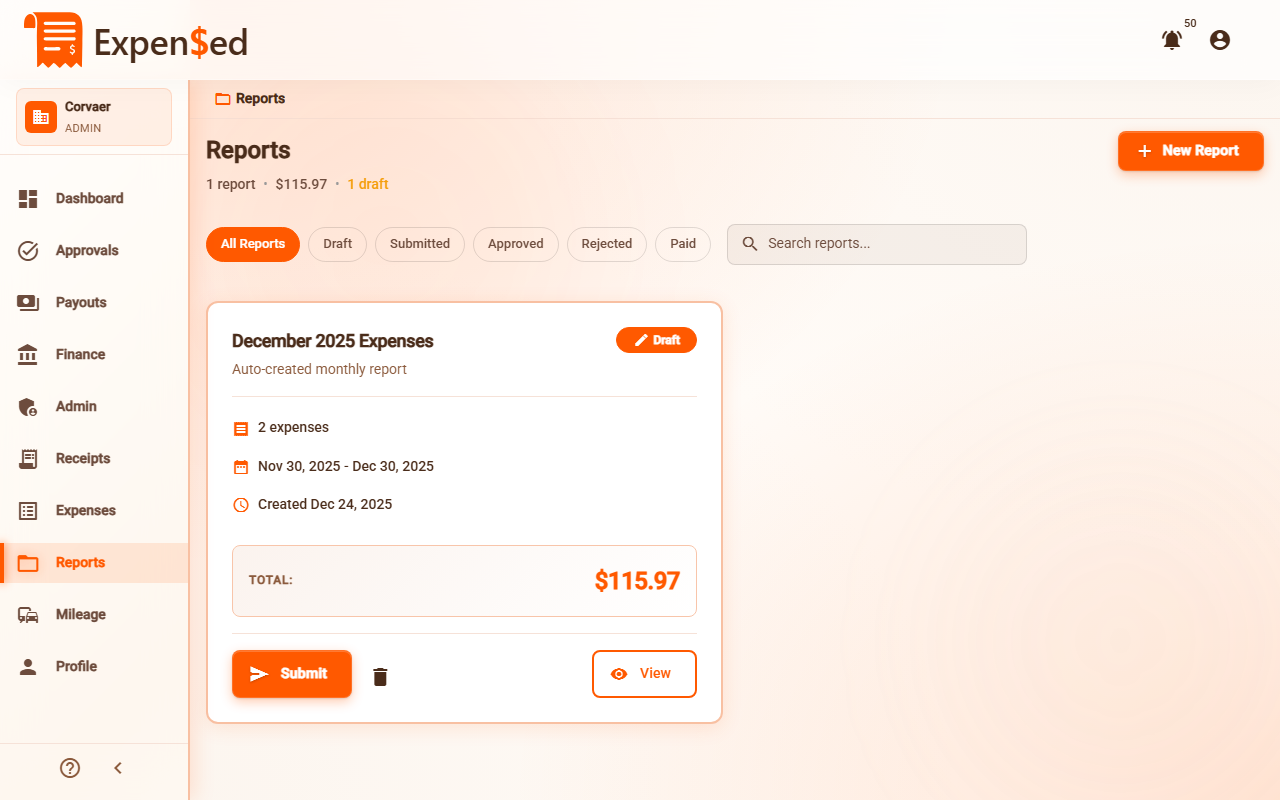
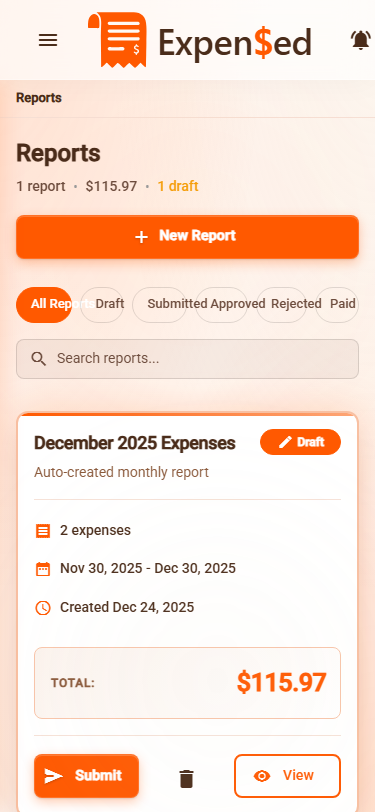
From the Reports List
- Go to Reports in the sidebar
- Each report shows its current status badge
- Filter by status using the dropdown
From Report Details
- Click any report to open it
- See the status badge at the top
- View the detailed timeline below
The Approval Timeline
Each report has a timeline showing its history:
📝 Created
   December 15, 2025 at 9:30 AM

📤 Submitted
   December 15, 2025 at 2:15 PM

✅ Approved by Sarah Johnson (Manager)
   December 16, 2025 at 10:45 AM

✅ Approved by Mike Chen (Finance)
   December 17, 2025 at 3:30 PM

💰 Marked as Paid
   December 18, 2025 at 11:00 AM
Multi-Level Approval Progress
For reports requiring multiple approvals:
- Open the report
- Scroll to the Approval Progress section
- See each approval step:
| Step | Status | Approver |
|---|---|---|
| 1. Manager | Approved | Sarah Johnson |
| 2. Finance | Pending | Waiting... |
| 3. Admin | Not started | - |
Sequential Approvals
Each step must complete before the next one starts. Finance can't approve until the manager approves.
Status Notifications
You'll receive notifications when your report status changes:
In-App Notifications
- Click the bell icon 🔔 in the top bar
- See recent status updates
- Click to go directly to the report
Email Notifications
Depending on your settings, you'll receive emails for:
- ✅ Report approved
- ❌ Report rejected (with reason)
- 💰 Reimbursement processed
Manage email preferences in your profile settings.
Understanding Rejections
If your report is rejected:
- You'll see a red "Rejected" status
- Open the report to see the rejection reason
- The rejector's comments appear in the timeline
- Status changes back to allow editing
Common Rejection Reasons
| Reason | What to Do |
|---|---|
| "Missing receipt for hotel" | Add the hotel receipt |
| "Exceeds meal limit of $50" | Split into multiple meals or get approval |
| "Need business purpose" | Add notes explaining the expense |
| "Wrong category selected" | Change to the correct category |
Resubmitting After Rejection
- Open the rejected report
- Review the rejection reason
- Make the necessary fixes
- Click Resubmit
- The report goes back for approval
Address All Issues
Fix everything mentioned in the rejection to avoid being rejected again.
Filtering Reports by Status
To find reports in a specific status:
- Go to Reports
- Click the Status filter
- Select one or more statuses:
- All
- Draft
- Submitted
- Approved
- Rejected
- Paid
Quick Actions by Status
| Status | Available Actions |
|---|---|
| Draft | Edit, Add Expenses, Delete, Submit |
| Submitted | View, Withdraw (if allowed) |
| Approved | View, Download |
| Rejected | Edit, Resubmit |
| Paid | View, Download |
Checking Reimbursement Status
Once approved, track your reimbursement:
- Open the paid report
- See the Payment Details section:
- Payment date
- Payment method (ACH, check, etc.)
- Amount paid
- Bank account (last 4 digits)
Download Report Summary
For any report:
- Open the report
- Click Download or Export
- Choose PDF or CSV format
- Save the summary for your records
Next: Mileage Quick Entry →